 How Keyboards Work
 How Keyboards Work
An interactive guide to the journey of a keystroke, from switch to screen.
I'm obsessed with keyboards and the technology we use every day without thinking twice about. We tap keys thousands of times a day, yet most of us have no idea what actually happens between a finger pressing plastic and a letter showing up on screen. I wanted to figure out how all of that worked — the switches, the scanning, the protocols, the whole chain — and decided to document what I learned on this site. It's been a way to deepen my own understanding and hopefully make it easier for others to appreciate the quiet engineering behind something we all use every day and take for granted. Let's go deep. 🤿
The Keyboard Pipeline
From finger to screen - the journey of a keystroke
When you press a key, it feels instantaneous. But between your finger touching plastic and a character appearing on screen, an intricate chain of events unfolds in milliseconds.
This guide walks you through every step of that journey. We'll explore the physical mechanics of switches, the electronics of matrix scanning, the protocols that carry your keystrokes to the computer, and finally how your operating system delivers them to applications.
Understanding this pipeline helps you appreciate why some keyboards feel more responsive than others, why certain key combinations might not work, and how latency accumulates through the system.
Keystroke Pipeline
Press the button below to watch a keystroke travel through the entire pipeline. You'll see the key physically press down, the switch contacts close, the signal travel through the matrix and controller, over the USB cable, and into your application.
The visualization above shows a cross-section of a keyboard and computer. Watch how the signal flows from the physical switch, through the PCB's matrix and controller chip, over the USB cable, and finally through the operating system to reach your application. The entire journey typically takes 5-25 milliseconds.
Keyboard Switches
The mechanical heart of every keystroke
Every key on your keyboard sits atop a switch - a mechanism that converts your physical press into an electrical signal. The type of switch determines how your keyboard feels and sounds.
Membrane Switches
Most keyboards use membrane switches: two flexible plastic sheets with conductive traces. When you press a key, the top membrane pushes down and contacts the bottom membrane, completing a circuit. These switches are inexpensive and quiet, but they lack tactile precision and wear out faster.
Mechanical Switches
Mechanical keyboards use individual switches under each key. Each switch contains a spring, a stem, and metal contact leaves. When you press the key, the stem pushes down, and at a certain point (the "actuation point"), the contacts meet and the circuit closes.
Mechanical switches come in three main types:
- Linear: Smooth press from top to bottom (e.g., Cherry MX Red)
- Tactile: A noticeable bump at the actuation point (e.g., Cherry MX Brown)
- Clicky: Tactile bump plus an audible click (e.g., Cherry MX Blue)
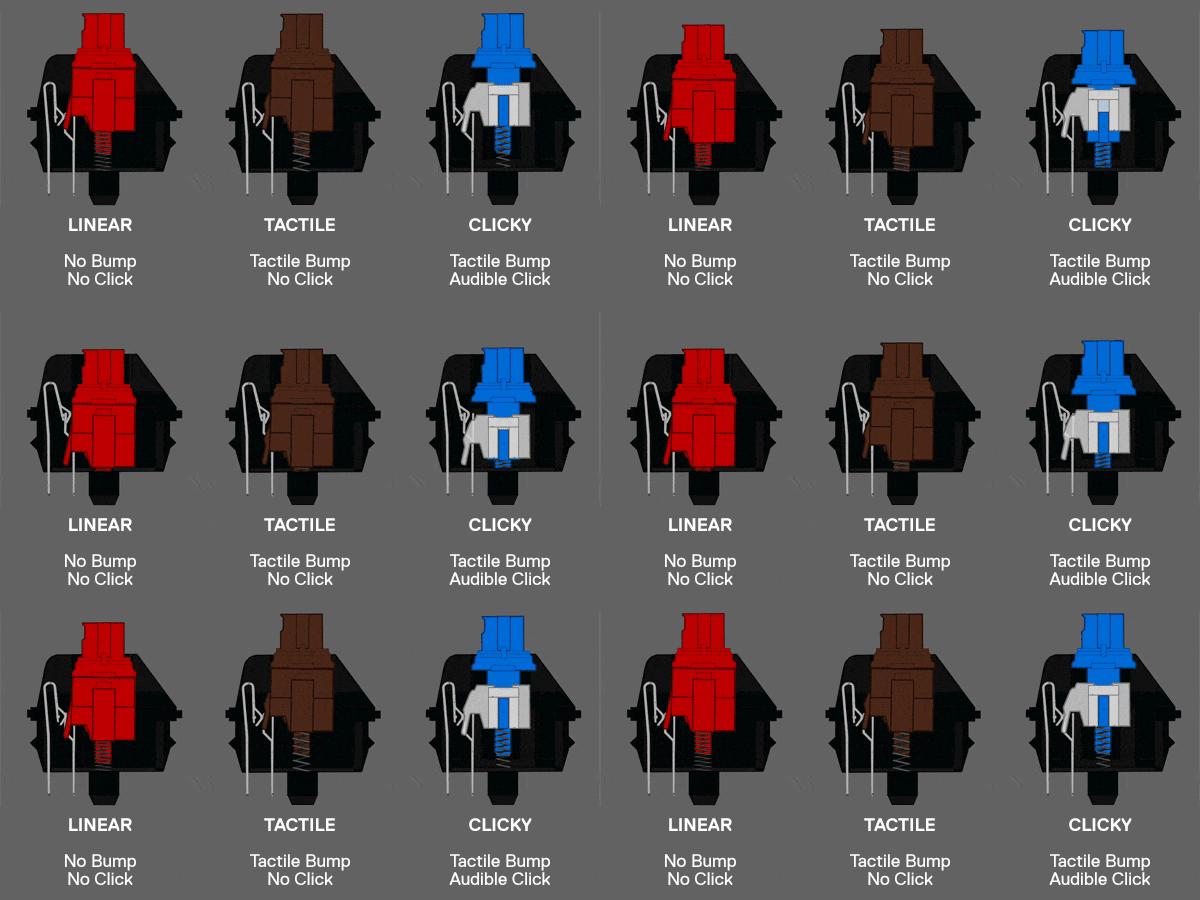 Source: A brief Introduction to Mechanical Keyboard Switches
The Contact Bounce Problem
When metal contacts meet, they don't make clean contact instantly. They literally bounce - making and breaking connection several times over a few milliseconds. This "contact bounce" would register as multiple key presses without proper handling, which brings us to debouncing.
The Key Matrix
How keyboards read 100+ keys with minimal wiring
A full-size keyboard has over 100 keys. If each key had its own dedicated wire to the controller, you'd need over 100 input pins - far more than most microcontrollers provide. The solution is a matrix.
How a Matrix Works
Keys are arranged in rows and columns. Instead of 100+ wires, a 10x10 matrix needs only 20 wires (10 rows + 10 columns) to address 100 keys. Each key sits at the intersection of one row and one column.
The controller scans one row at a time: it activates a row (sets it to a known voltage), then reads all column lines. If a key in that row is pressed, the corresponding column will show the signal. By rapidly scanning all rows, the controller can detect which keys are pressed.
Matrix Scanner
Click keys to press them and watch the row-by-row scanning
The Ghosting Problem
Matrices have a weakness: ghosting. If you press three keys that form an "L" shape (sharing rows and columns), the controller might detect a fourth, phantom key at the corner of the rectangle.
This happens because electricity can flow backwards through the pressed keys. The solution is diodes - one-way electrical valves placed on each key. With diodes, current can only flow in one direction, preventing ghosting.
Most gaming keyboards and all quality mechanical keyboards include diodes for every key, enabling true "n-key rollover" - the ability to press any number of keys simultaneously without ghosting.
Debouncing
Filtering the noise of mechanical contacts
Mechanical contacts don't make clean connections. When switch contacts meet, they bounce - rapidly making and breaking contact for a few milliseconds before settling. Without handling, one key press could register as 5-20 separate presses.
The Bounce Pattern
A typical mechanical switch bounces for 1-5 milliseconds after initial contact. During this time, the signal might look like rapid on-off-on-off switching. The keyboard's controller must filter this noise to detect a single, clean key press.
Debounce Visualizer
Watch how debouncing filters contact bounce into a clean signal
Debouncing Strategies
Hardware debouncing uses capacitors and resistors to smooth the electrical signal. The capacitor charges slowly, filtering out rapid transitions. This adds cost and complexity to the PCB.
Software debouncing is more common in modern keyboards. The controller ignores state changes for a short "debounce window" after detecting a transition. Common approaches include:
- Delay-based: After detecting a press, wait 5-20ms before checking again
- Integration: Count consecutive samples in the same state before confirming
- Symmetric: Apply the same delay to both press and release events
Real-World Considerations
Different switches have different bounce characteristics. Cherry MX switches typically settle within 5ms, while some cheaper switches may bounce for 10-15ms. A well-tuned keyboard adjusts debounce time to match its switches - short enough for responsiveness, long enough for reliability.
Scan Codes
The universal language of key positions
Once the keyboard detects a key press, it needs to communicate which key was pressed. This is where scan codes come in - standardized numbers that identify each physical key position.
Position, Not Character
A critical distinction: scan codes represent physical positions, not characters. The key in the top-left letter row sends the same scan code whether your layout is QWERTY (Q), AZERTY (A), or Dvorak ('). The operating system later maps scan codes to characters based on your selected layout.
This separation allows one keyboard to work with any language or layout - the keyboard just reports positions, and the OS handles interpretation.
Scan Code Explorer
Click a key and switch layouts to see how scan codes map to characters
Scan Code Sets
Historically, keyboards used different scan code sets:
- Set 1: The original IBM PC XT codes (still emulated for compatibility)
- Set 2: IBM AT extended codes (most PS/2 keyboards)
- Set 3: Terminal keyboards (rarely used)
Modern USB keyboards use HID Usage Codes, a standardized set defined by the USB-IF (USB Implementers Forum). These codes are part of the Human Interface Device specification and provide a consistent mapping across all USB keyboards.
Common Scan Codes
Some notable USB HID usage codes:
0x04- 'A' key position0x1E- '1' key position0x28- Enter0x29- Escape0xE0-E7- Modifier keys (Ctrl, Shift, Alt, GUI)
The full specification includes hundreds of codes for every conceivable key, from standard letters to multimedia controls and international keys.
USB HID Protocol
How keystrokes travel over the USB cable
The Human Interface Device (HID) protocol defines how keyboards communicate with computers over USB. It's a standardized format that works across all operating systems without special drivers.
The HID Report
When you press or release keys, the keyboard sends a small data packet called a "report". A standard keyboard report is just 8 bytes:
Byte 0: Modifier keys (Ctrl, Shift, Alt, GUI as bit flags)
Byte 1: Reserved (always 0)
Bytes 2-7: Up to 6 simultaneous key codes
This structure allows reporting up to 6 regular keys plus any combination of modifier keys simultaneously. The 6-key limit comes from this fixed report format, which is why standard USB keyboards are limited to "6-key rollover" (6KRO).
HID Report Viewer
Click keys and modifiers to build a live HID report packet
Polling Rate
The USB host (your computer) polls the keyboard at regular intervals, asking "any new data?". Standard keyboards use a 125Hz polling rate (8ms intervals). Gaming keyboards often support higher rates:
- 125Hz = 8ms maximum latency
- 500Hz = 2ms maximum latency
- 1000Hz = 1ms maximum latency
Higher polling rates mean keystrokes reach the computer faster, but consume more USB bandwidth and CPU time.
Boot Protocol vs. Report Protocol
USB keyboards support two modes. Boot Protocol is simple and works in BIOS/UEFI before drivers load. Report Protocol is the full-featured mode used after the OS boots, supporting advanced features like media keys and custom reports.
Key Rollover
Why some key combinations don't work together
"Rollover" describes how many keys can be pressed simultaneously while still having each one register correctly. It's a combination of hardware capabilities (matrix design, diodes) and protocol limitations (HID report format).
Understanding Rollover
2-key rollover (2KRO) means only 2 keys are guaranteed to work together. This was common in cheap membrane keyboards without diodes - pressing a third key might cause ghosting or blocking.
6-key rollover (6KRO) is standard for USB keyboards. The HID boot protocol limits reports to 6 simultaneous keys (plus modifiers). For most typing, this is sufficient.
N-key rollover (NKRO) means any number of keys can be pressed simultaneously. This requires both proper hardware (diodes on every key) and extended HID reports or alternative protocols.
When Rollover Matters
For normal typing, 6KRO is plenty - you rarely press more than 6 non-modifier keys at once. But in gaming or specialized applications:
- Fighting games might require 5+ simultaneous inputs
- DAW software uses complex keyboard shortcuts
- Stenography keyboards need 20+ simultaneous keys
Blocking and Jamming
Beyond ghosting, matrices can exhibit "blocking" (jamming) - where pressing certain key combinations prevents another key from registering at all. This happens when the electrical paths through pressed keys prevent accurate detection of additional keys. Good keyboard design and diode placement minimize these issues.
Input Latency
Where those precious milliseconds go
The time between pressing a key and seeing a result is called input latency. For competitive gaming and professional use, every millisecond counts. Let's trace where latency accumulates.
The Latency Stack
Keyboard Hardware (1-20ms)
- Switch travel to actuation: ~1-2ms
- Debounce processing: 5-15ms
- Matrix scan cycle: 0.1-1ms
- Report generation: <0.1ms
USB Transport (0.5-8ms)
- Waiting for next poll: 0-8ms (depends on polling rate)
- USB packet transmission: <0.5ms
Operating System (0.5-3ms)
- USB driver processing: 0.5-1ms
- Input subsystem: 0.5-1ms
- Event dispatch: 0.5-1ms
Application (1-16ms)
- Event processing: 1-3ms
- Render frame wait: 0-16ms (60fps = 16ms per frame)
Latency Breakdown
Adjust parameters to see how latency accumulates through the stack
Reducing Latency
Keyboard choices:
- Lower debounce times (if switch quality permits)
- Higher polling rates (1000Hz vs. 125Hz)
- Optical switches (no debounce needed)
System tuning:
- Gaming mode in keyboards (prioritizes speed)
- USB controller configuration
- Reduced OS processing overhead
Application settings:
- Higher frame rates
- Reduced input buffering
- Raw input APIs
The quest for lower latency drives innovation in gaming peripherals, but understanding the full stack helps set realistic expectations. A 1000Hz keyboard won't help much if your monitor runs at 60Hz.
Measuring Latency
How to test your keyboard's real-world performance
Marketing claims about latency are one thing; measuring real-world performance is another. Here's how to objectively test your keyboard's responsiveness.
Tools for Measurement
High-speed cameras can capture the moment a key actuates and when a pixel changes on screen. At 1000fps, you can measure latency to the millisecond. This is the gold standard for objective measurement.
Hardware latency testers like the LDAT (Latency Display Analysis Tool) use light sensors to detect both key actuation and screen changes, automating the measurement process.
Software tools can measure parts of the chain. Utilities exist to timestamp keyboard events at the driver level, showing USB and OS latency (though not keyboard internal processing).
What to Measure
When comparing keyboards, measure:
- End-to-end latency: Full stack from key press to screen change
- Consistency: Standard deviation matters as much as average
- Worst-case latency: Occasional spikes can be more disruptive than steady higher latency
- Release latency: Time from key release to the release event registering
Realistic Expectations
A well-designed gaming keyboard with 1000Hz polling, proper debouncing, and a responsive game can achieve end-to-end latency under 15ms. A budget keyboard at 125Hz with conservative debounce might measure 40-60ms.
For most users, improvements below 20ms are diminishing returns. Focus on consistency and build quality rather than chasing the lowest possible number.
And That's How Keyboards Work!
From the mechanical action of switches through matrices, debouncing, scan codes, USB HID reports, and finally to your application — every keystroke is a small engineering marvel.
Now that you know the journey each keystroke takes, you might start wondering — just how many of them do you actually make in a day?
WhatPulse tracks your keystrokes, mouse clicks, and bandwidth usage, turning the invisible activity at your keyboard into numbers you can actually explore. It's a fun way to stay curious about the tools you use every day.
Start counting your keystrokes